
BRITE - San Bartolome
Get the Emergency SOS app: download it from this website, set it up, and learn how to ask for help in just a few taps.
How the App Works
The Emergency SOS app lets residents send an emergency alert straight to their barangay.
One-Tap SOS
Press the red SOS button, pick the emergency type, and confirm to send your alert.
Location Included
Your location is sent with the alert so responders know exactly where to go.
Sent to Barangay Hotline
Your alert is delivered by SMS to your barangay's emergency hotline.
Responders Dispatched
Barangay responders receive the alert and come to your location.
1 Download the App
The app is downloaded directly from this website — it is not in the Play Store or App Store.
- Tap Download BRITE Emergency SOS App and wait for the file to finish downloading.
- Open the downloaded file from your notifications or your Downloads folder.
- If your phone asks, allow Install from this source (or "Install unknown apps") for your browser.
- Tap Install, then Open.
2 How to Set Up & Use the App
Follow these steps after installing. Look for the red circle — that is where you tap.
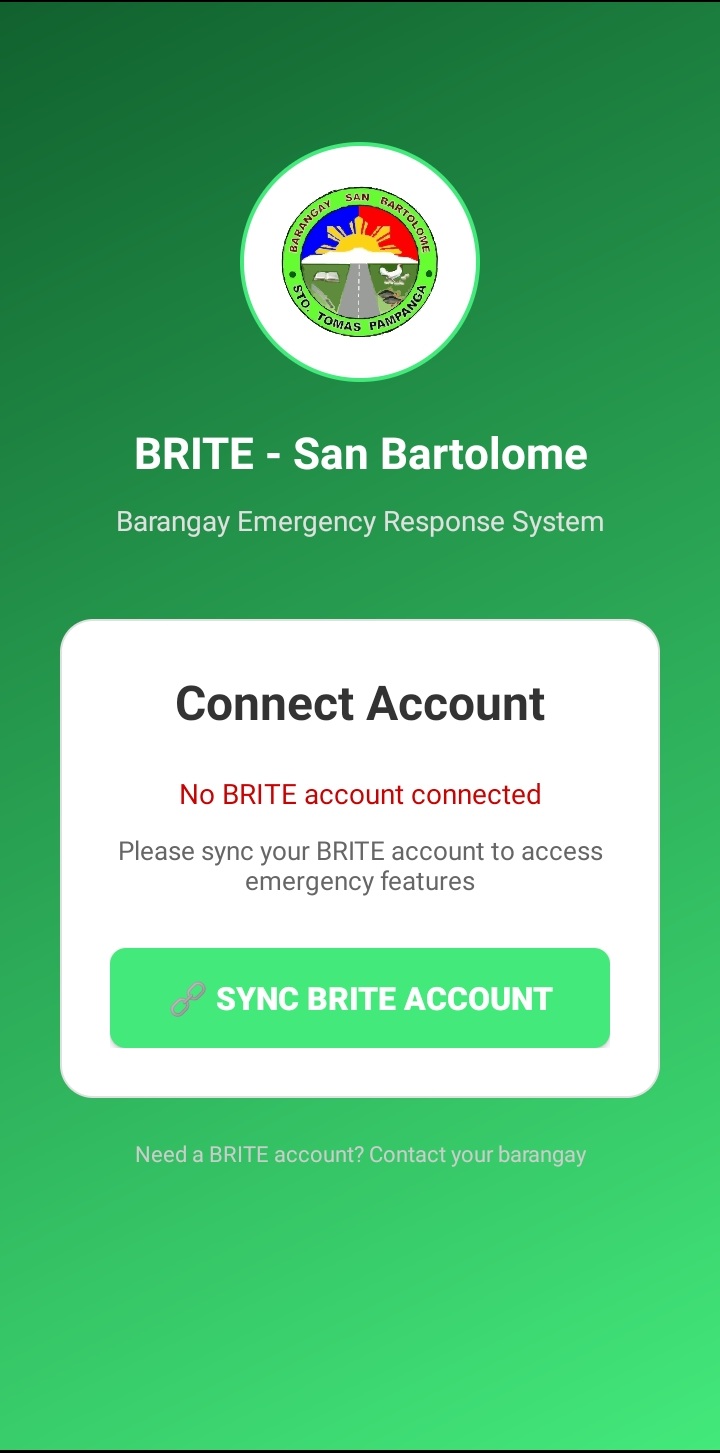
Connect your BRITE account
When you first open the app, it will say "No BRITE account connected". Tap the green Sync BRITE Account button to go to the sign-in page.
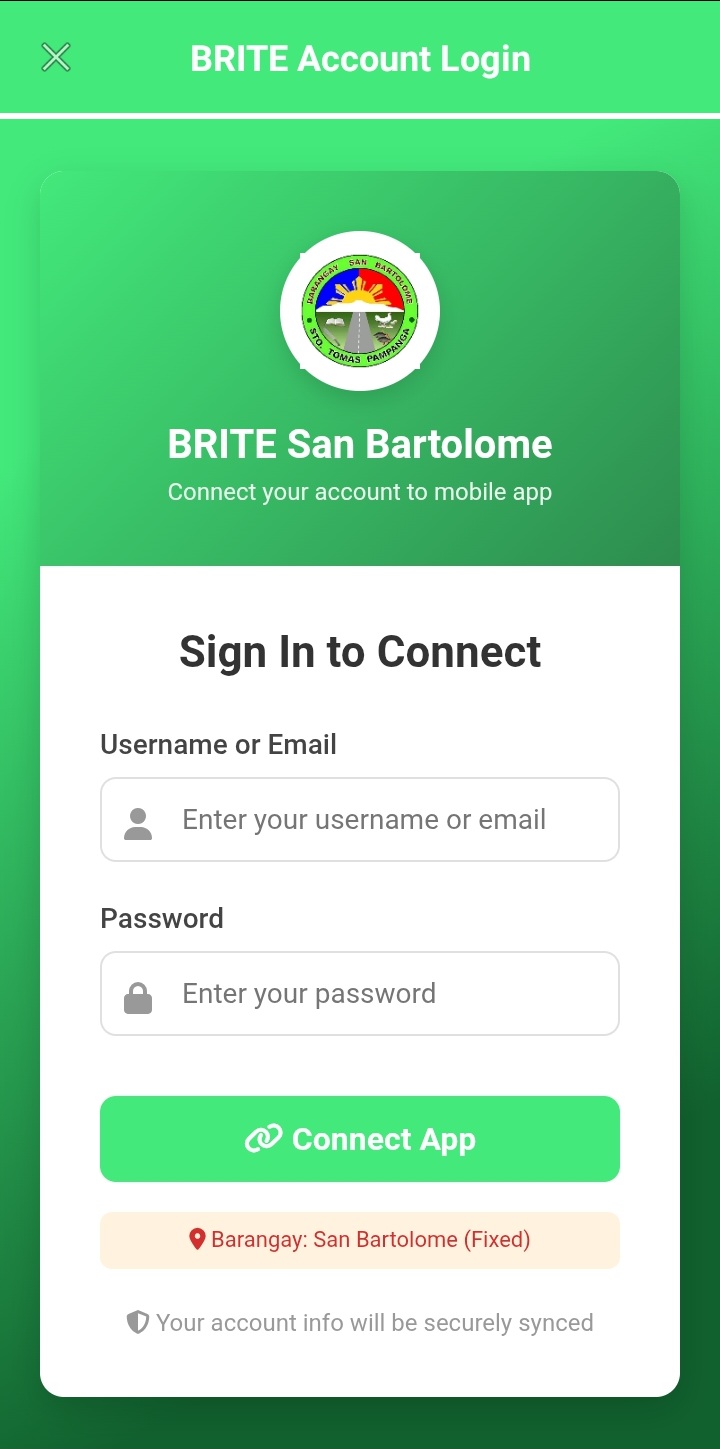
Sign in with your BRITE account
Enter the username or email and password of your BRITE account, then tap Connect App. This links your account to the app.
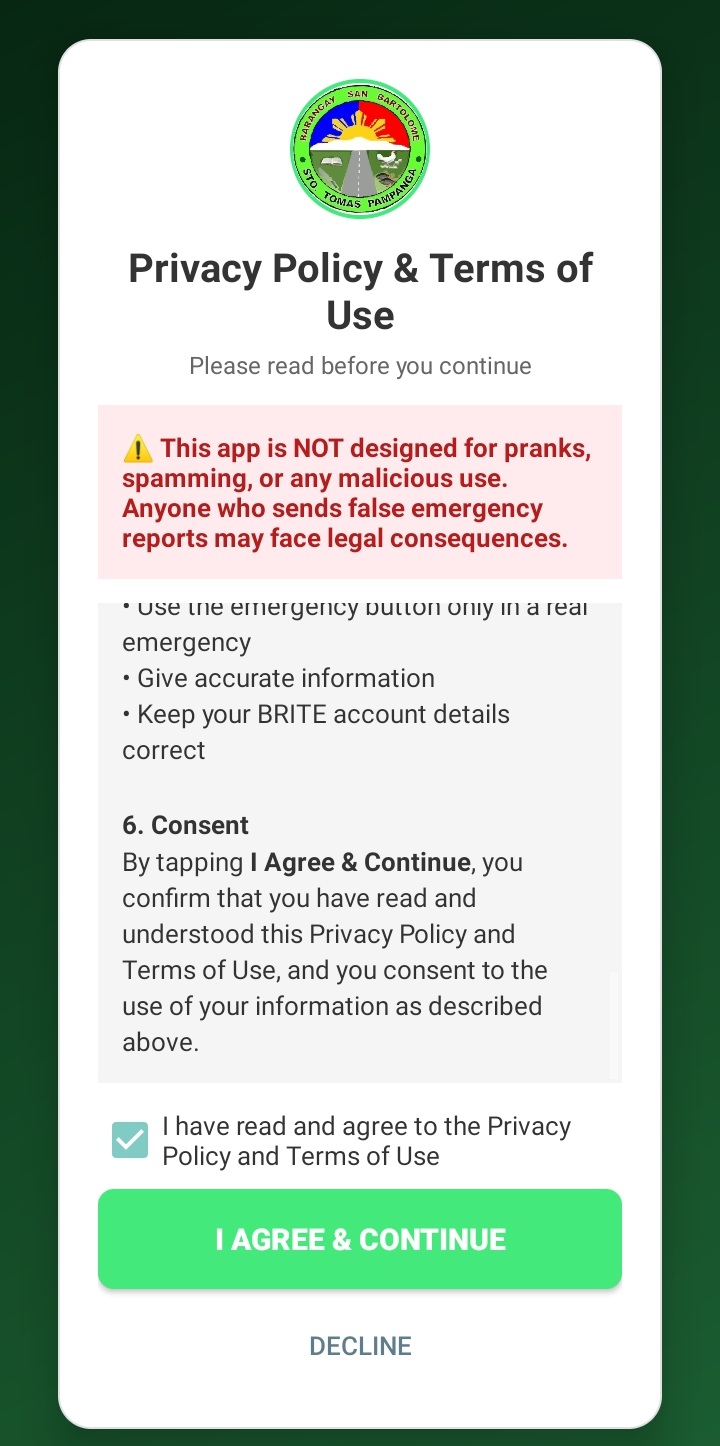
Read and agree to the terms
Read the Privacy Policy & Terms of Use. Tick the checkbox, then tap I Agree & Continue. Remember: false or prank reports may lead to legal consequences.
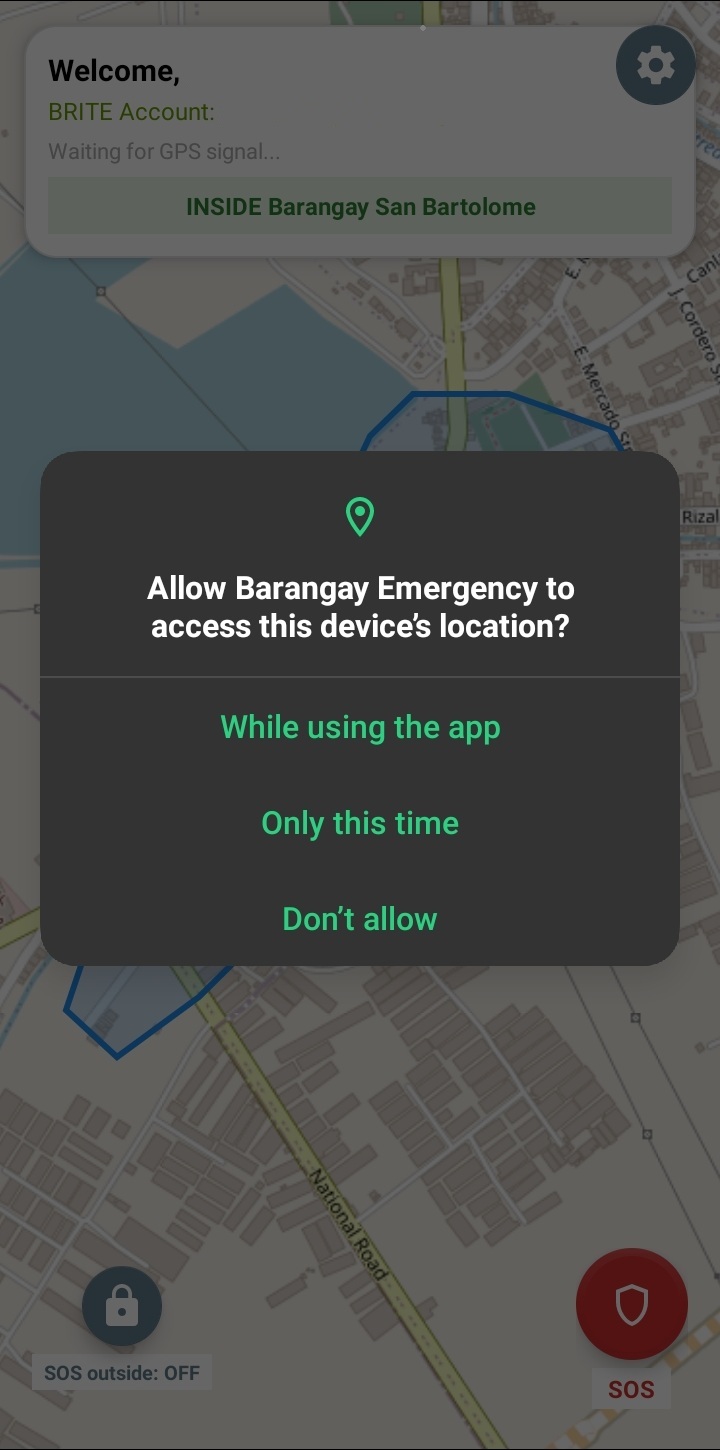
Allow location permission
The app needs your location so the barangay knows where you are. Tap While using the app.
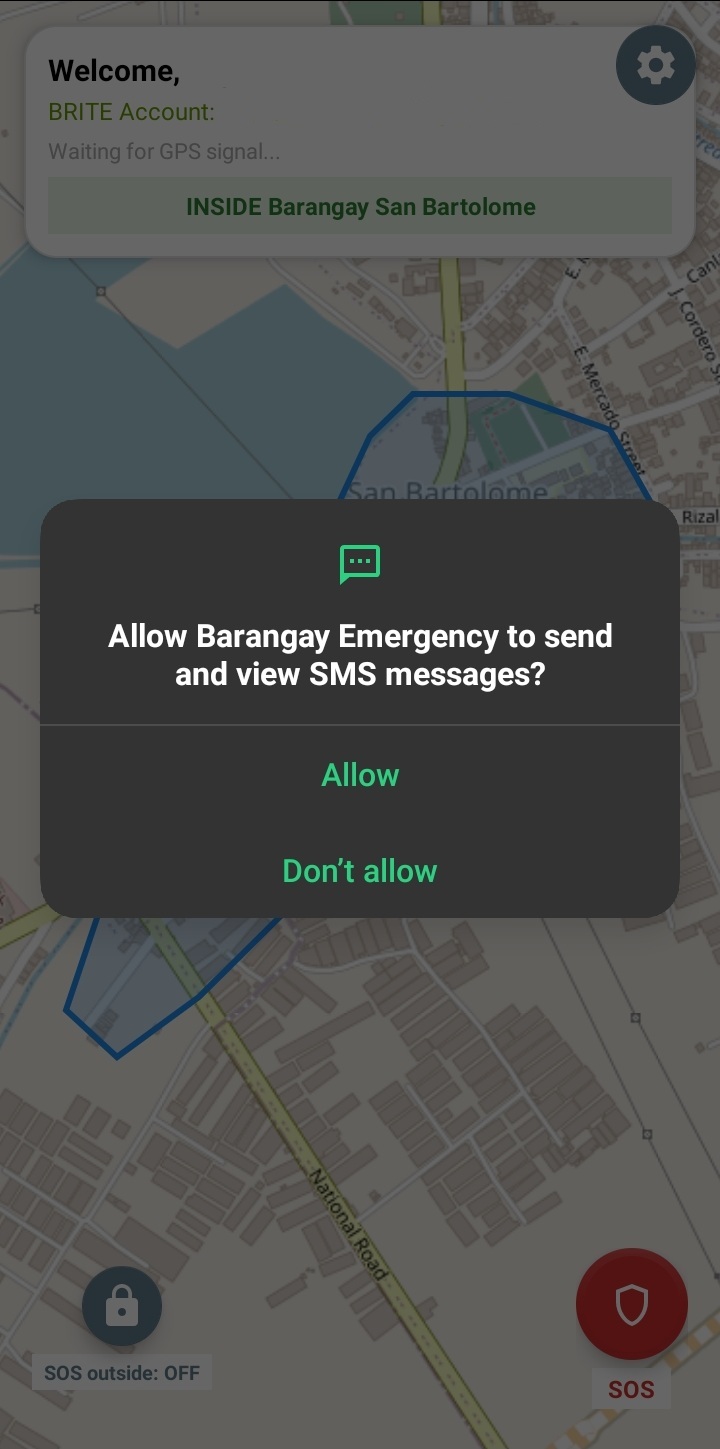
Allow SMS permission
Your alert is sent to the barangay hotline by SMS. Tap Allow so the app can send and view messages.
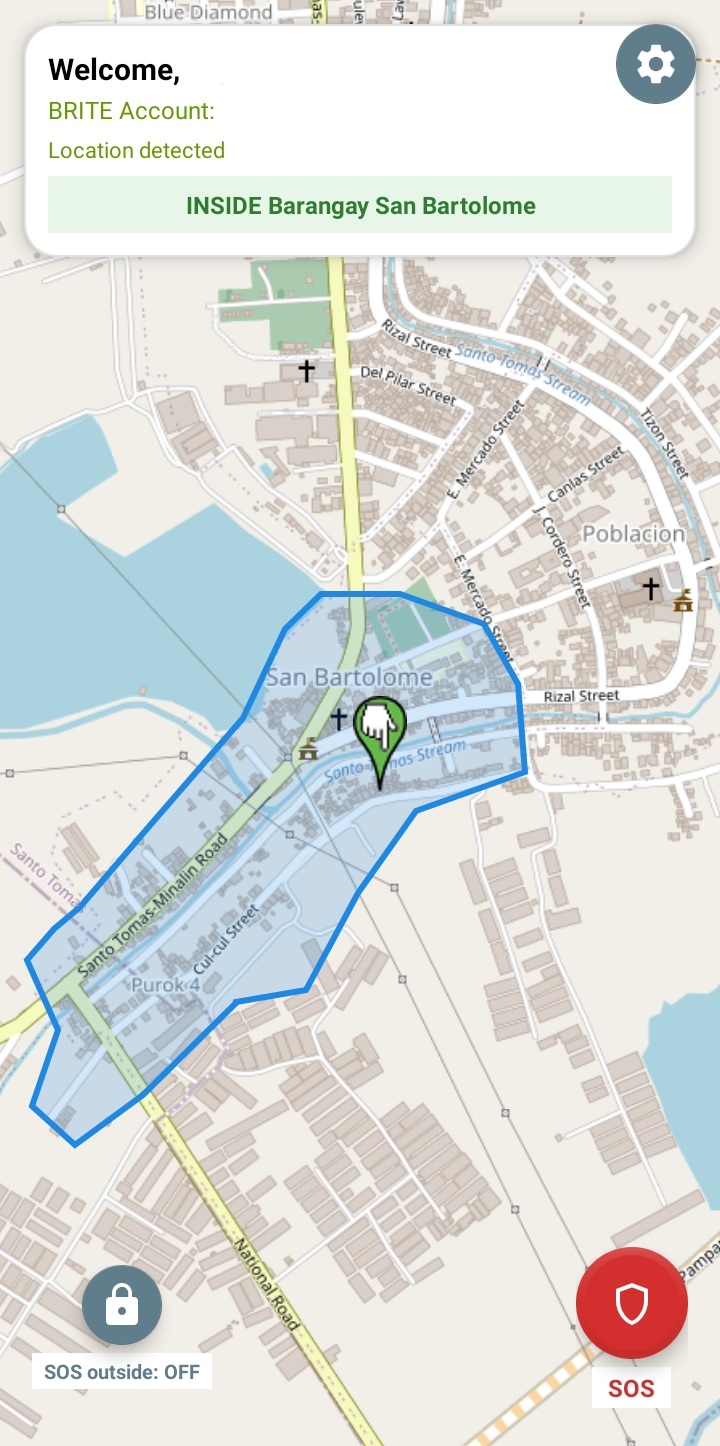
Press the red SOS button
You're all set! When you need emergency help, tap the red SOS button at the bottom right of the map.
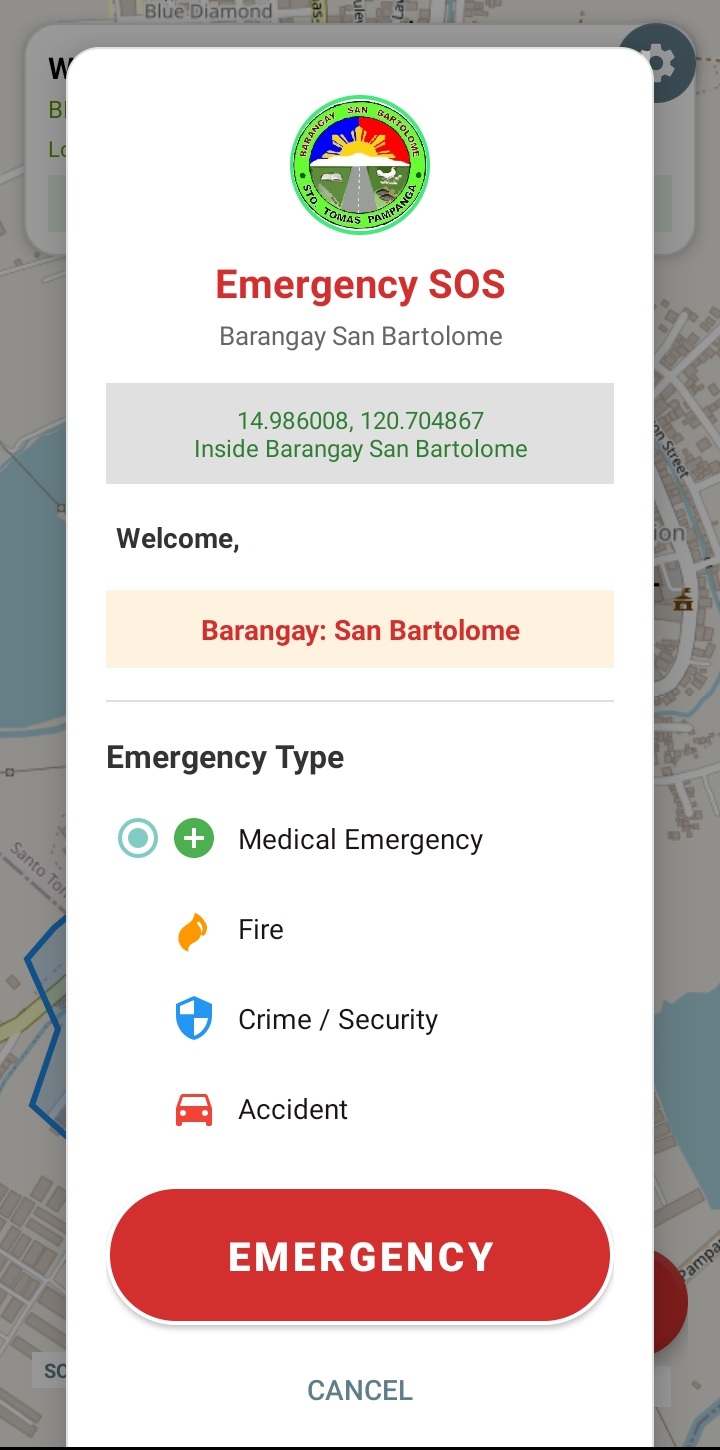
Select the type of emergency
Choose what you need help with: Medical, Fire, Crime / Security or Accident. Then tap the red Emergency button.
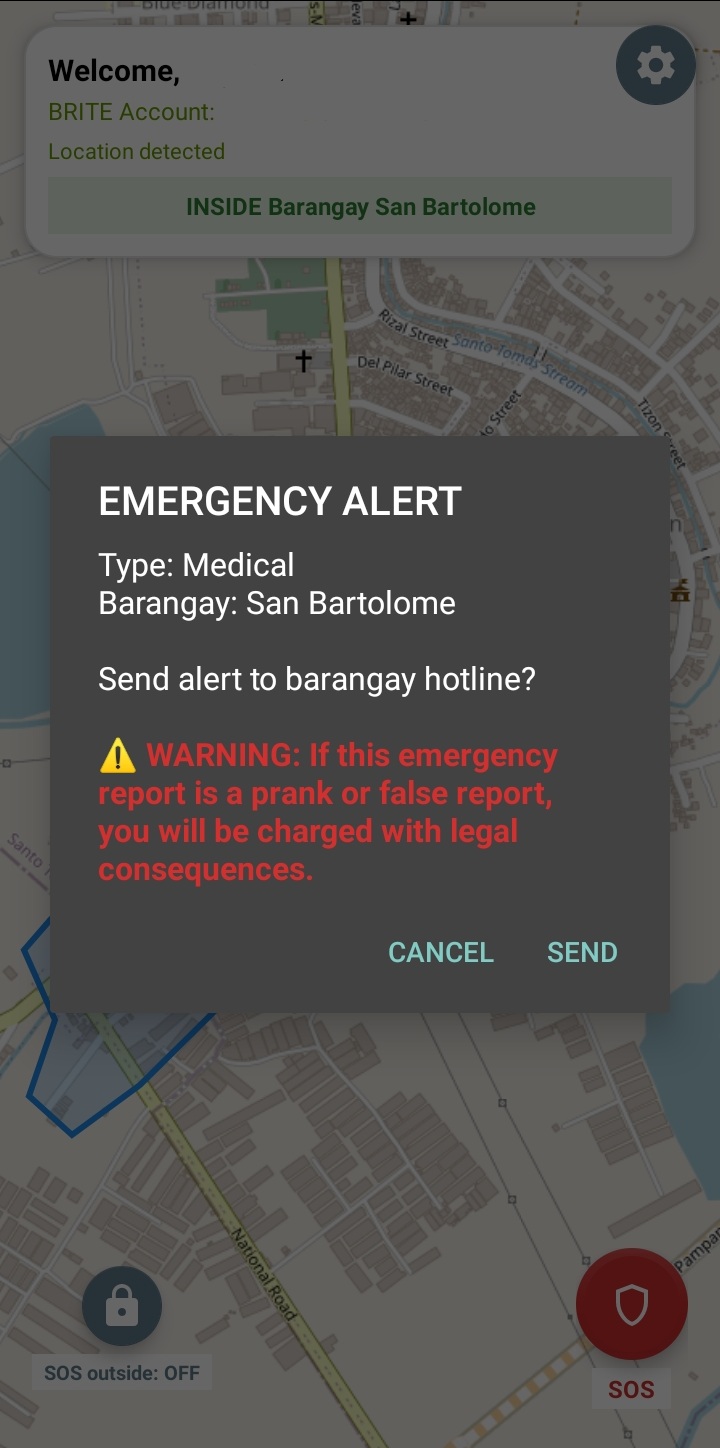
Confirm your emergency
Check the details, then tap Send to alert the barangay hotline. Only send if it is a real emergency — tap Cancel if you pressed by mistake.
Wait for the Responders
Your alert has been sent to the barangay. Stay calm, stay where you are if it is safe, and keep your phone with you. Responders are on their way to your location.